
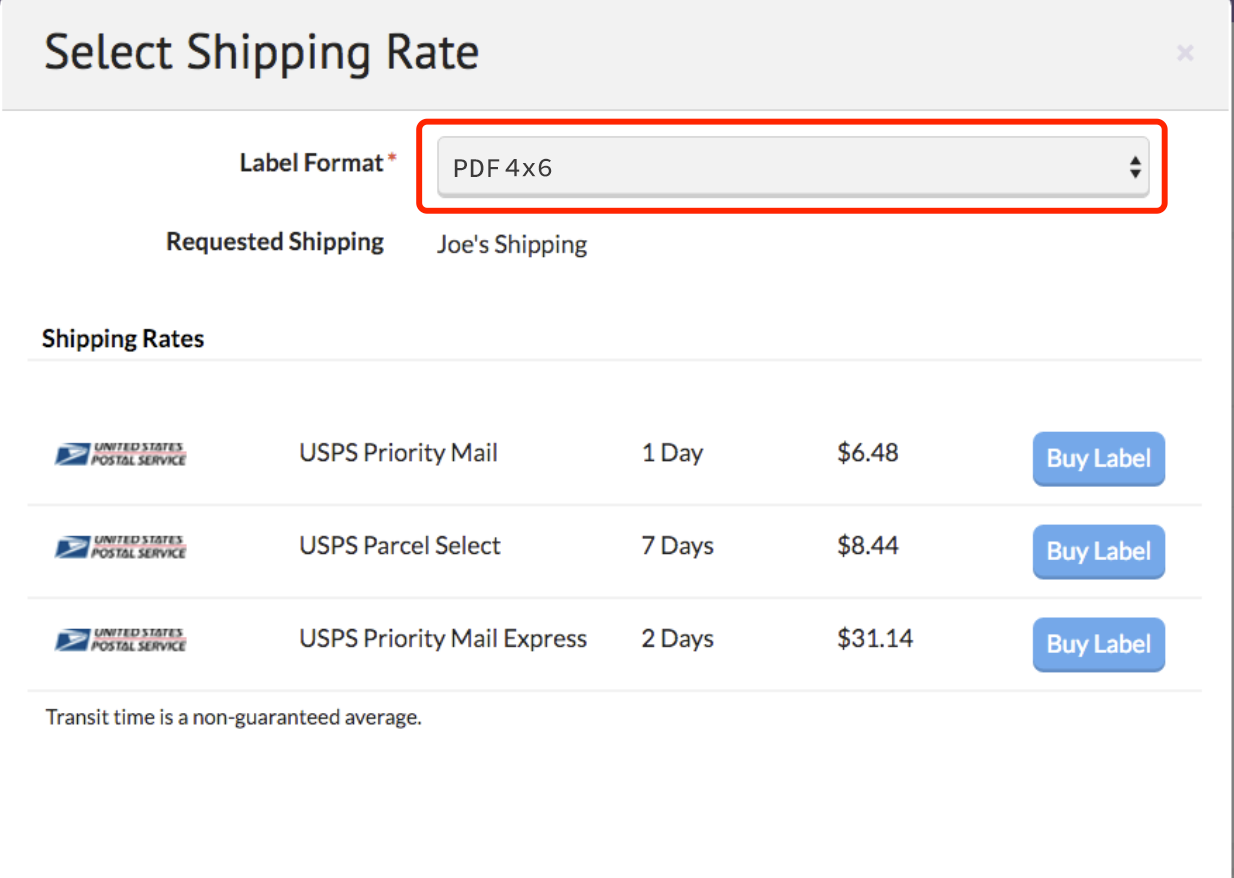
1. After clicking the "Create Shipping Label" button, a pop-up window will appear. Follow the prompts until you reach the "Select Shipping Rate" page.
2. Switch the label format to "PDF 4x6". Please note that this adjustment will only apply to newly created labels.
 Referential link:
https://support.sellbrite.com/en/articles/3367223-shipping-your-orders-with-sellbrite
For Mobile App
-
Download our Flashlabel Pro app via this link:
https://labeer.net/blogs/labeer-y43bt/how-to-use-printer-on-the-phone -
Import your PDF into the app and print directly. For detailed step-by-step instructions, please refer to the section titled "Print a PDF Label Using FlashLabel Pro App" in this link:
https://labeer.net/blogs/labeer-y43bt/how-to-use-printer-on-the-phone
-


If you're using an iPhone, go to "Save Label" and scroll down—you’ll see the "Print with FlashLabel Pro" option (see screenshot). You can print directly from here, no need to save PDFs or images first.

For Mac
-
Enter the preview interface.
-
Select theLABEER Y43BT printer.
-
Choose paper size: 4×6inch.
-
Click Print.
-

For Windows
-
Enter the preview interface.
-
Select the LABEER Y43BT printer.

-
Choose paper size: 100×150mm.
-
Click Print.

If you're using an iPhone with Sellbrite, go to "Save Label" and scroll down—you’ll see the "Print with FlashLabel Pro" option (see screenshot). You can print directly from here, no need to save PDFs or images first.